Create and Configure a Rule
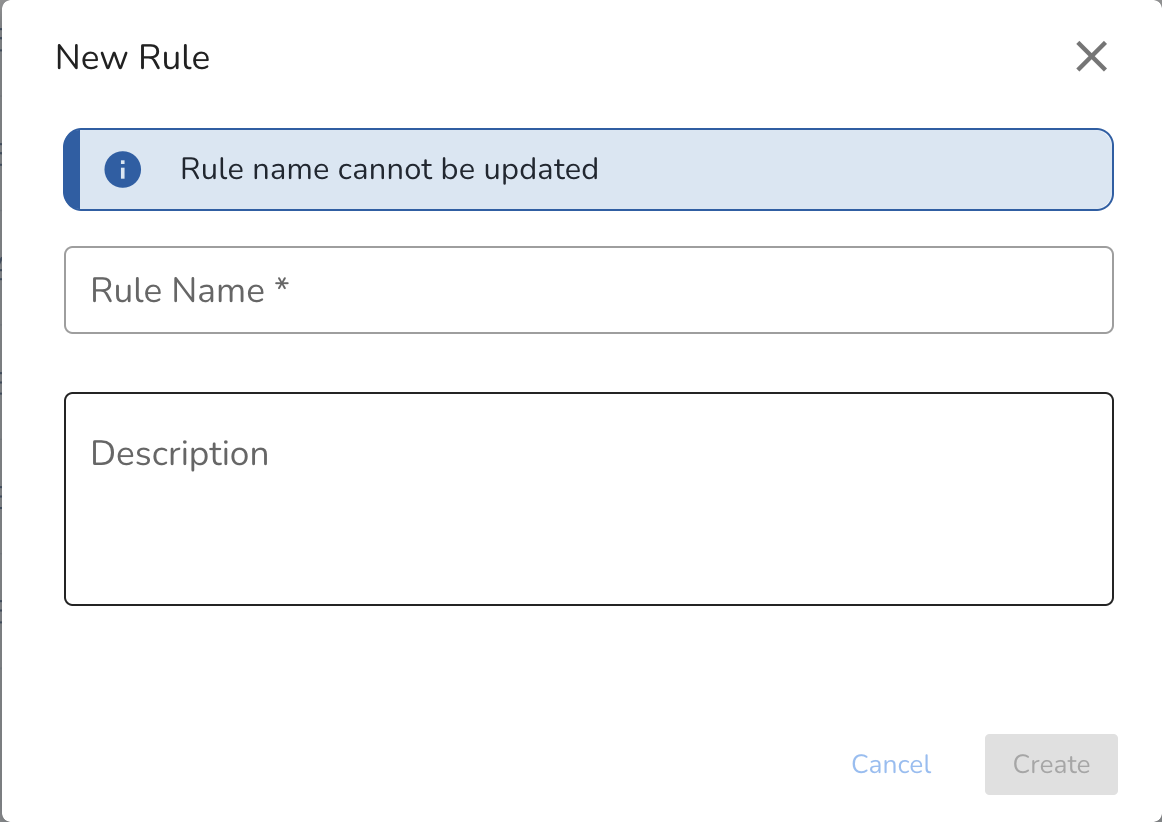
Navigate to the desired Workspace and select Create Rule Model from the model actions menu. Then configure the Rule by selecting input signals, defining the rule logic, and setting the alerting criteria.
Rule-naming
It is recommended that the Rule name contain NO whitespaces or special characters except hyphen (-) or underscore (_) to ensure compatibility with all downstream applications.
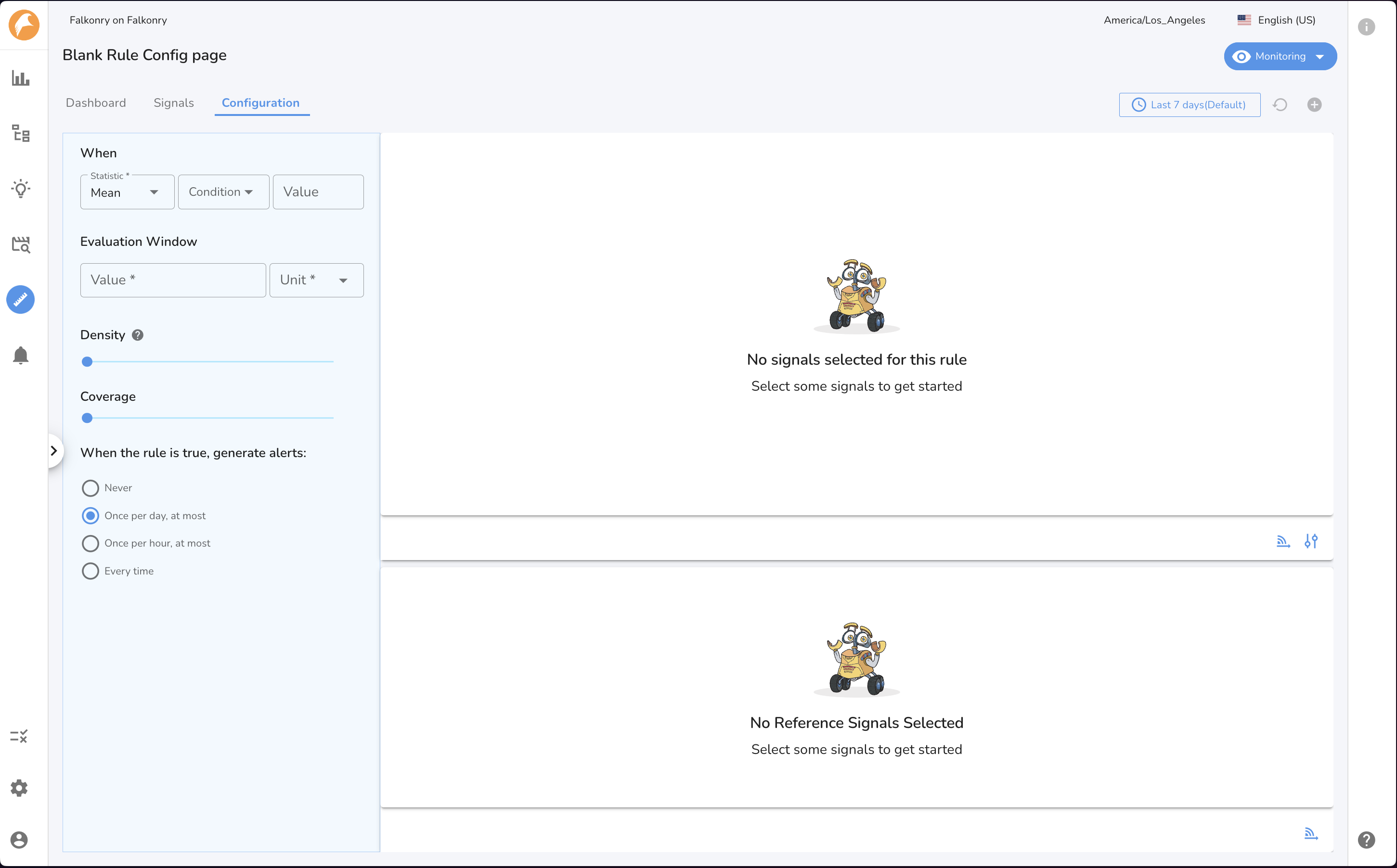
A Rule model is configured with the following parameters: Input Signals, threshold criteria, Evaluation Window, Density, and Coverage to control how signal behavior is evaluated over time and across multiple signals. Finally, set the Alert Frequency to determine how often alerts are generated.
Configure Rule Criteria
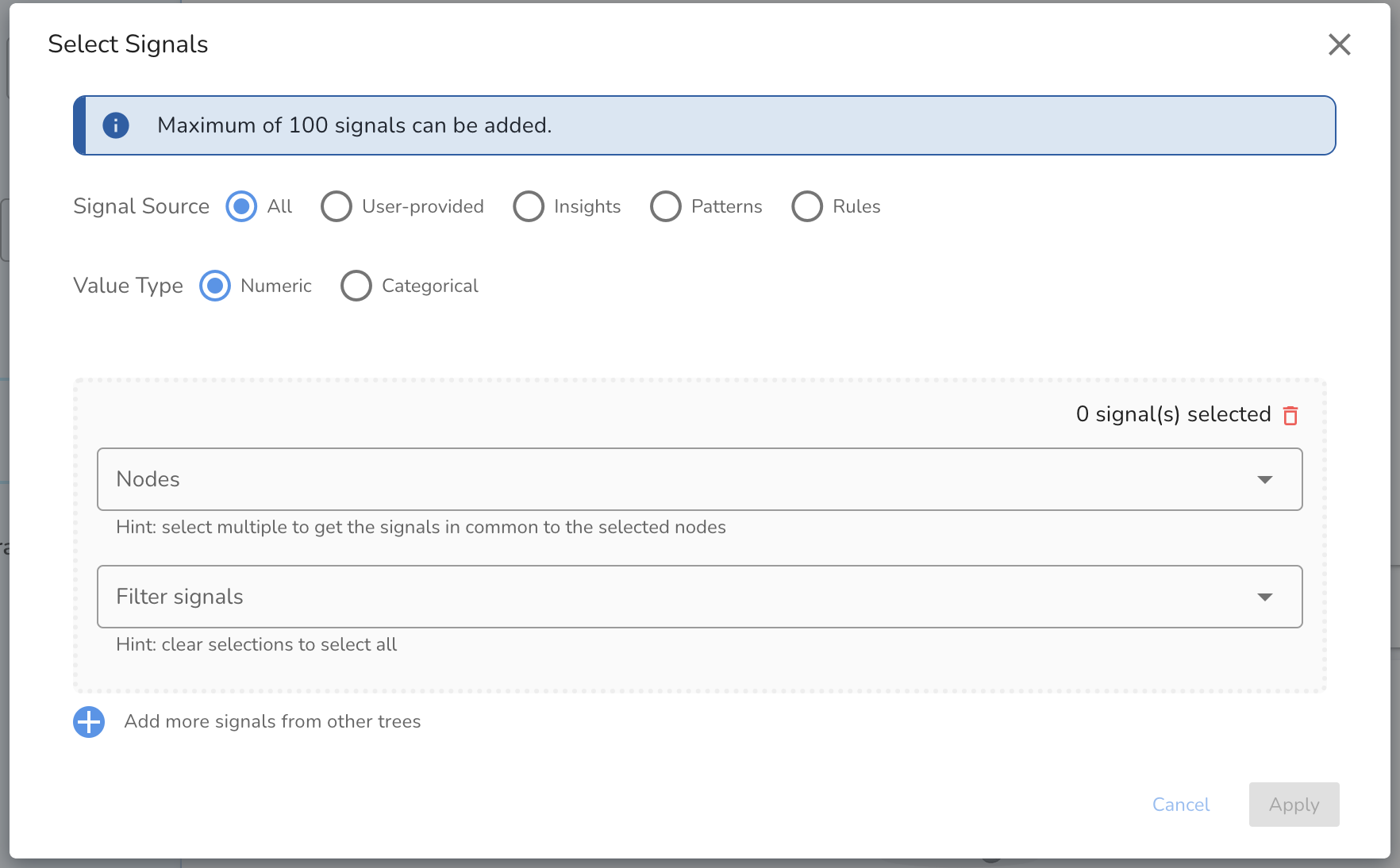
1. Select Signal(s)
Select signals based on their signal source when creating a rule. This selection automatically filters the available signals to those from the chosen source. Optionally, you may add signals to the reference signals section where the rule criteria will not apply.
2. Define the base threshold
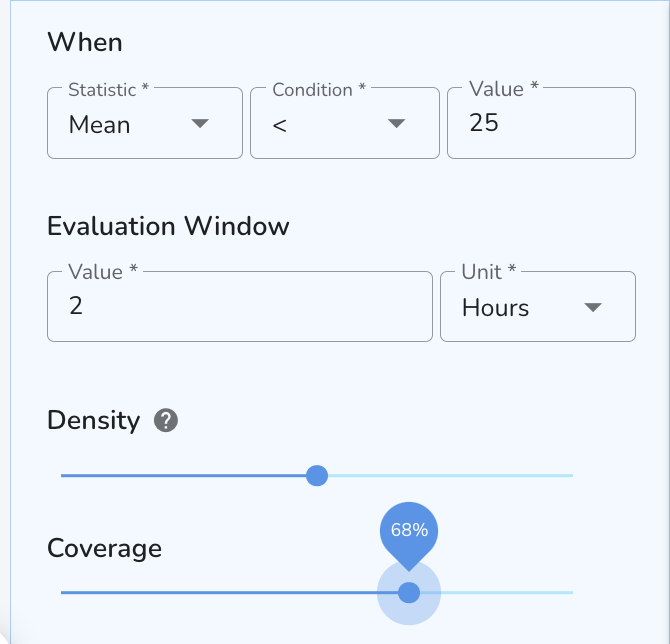
For numeric signals
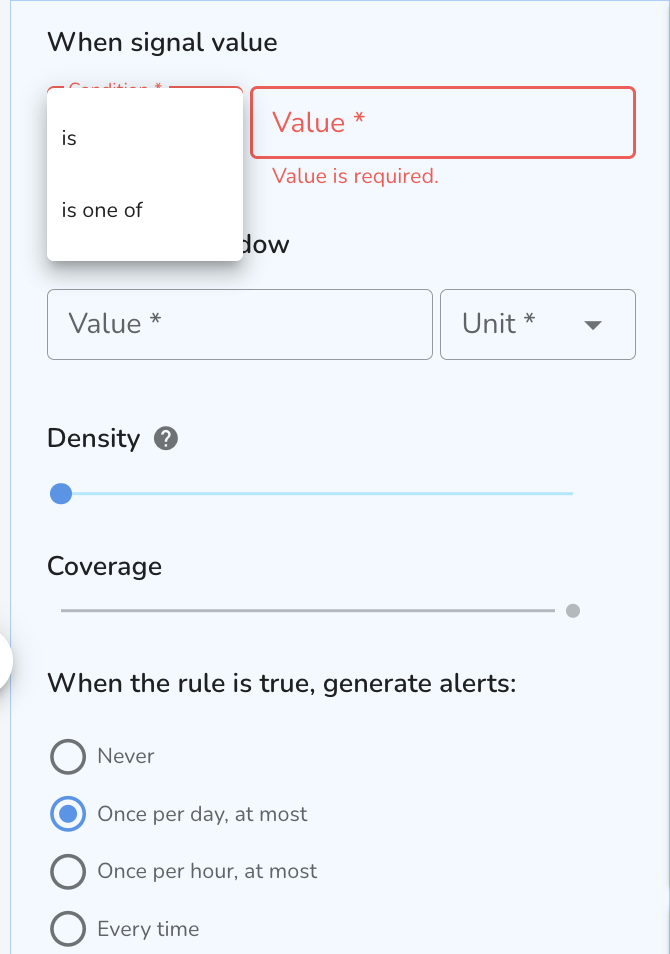
For categorical signals
For multiple states, enter comma-separated values. e.g. warning,onset,unknown This field is case sensitive. Do NOT include a space between labels.
3. Select an Evaluation Window
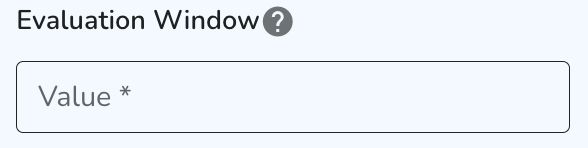
Select an evaluation window length by entering a value. e.g. PT1H or 1 hour.
4. Select Density
Select a density setting for your rule.
5. Select Coverage
If your rule has more than one input signal, select a coverage setting for your rule. The coverage setting will determine the percentage of the rule input signals for which the condition and density must be satisfied to trigger the rule. To learn more about the coverage setting, visit the glossary section of this article.
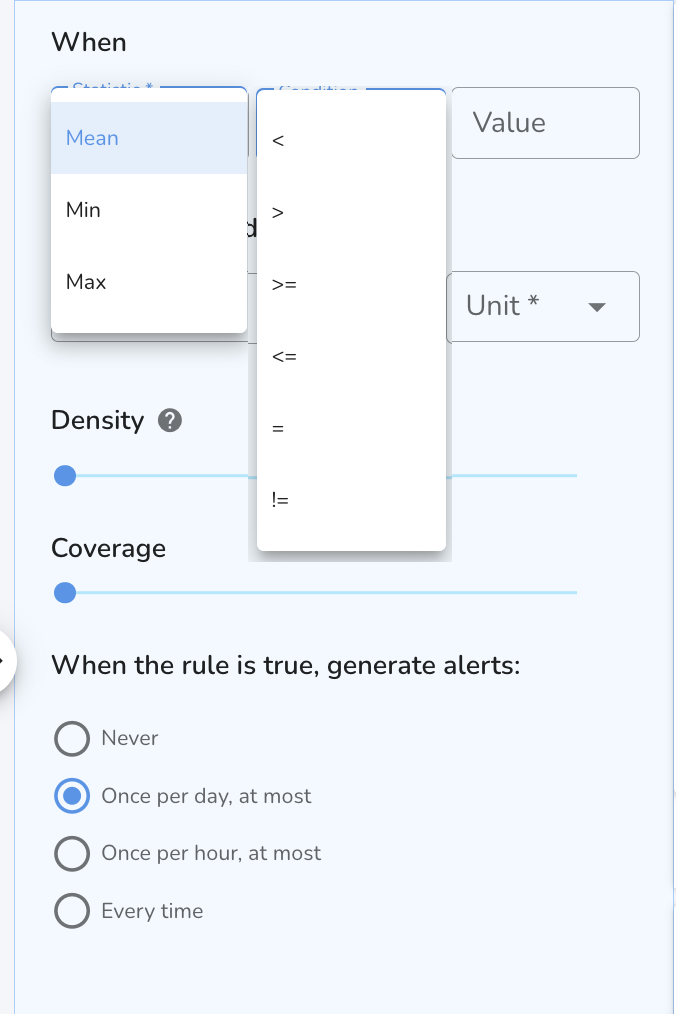
6. Alert Frequency
Select an alerting cadence for this rule. An alert is a secondary output to a rule which is created based on your selected cadence, rather than every time the rule assessment is True. This can be useful for notifying relevant team members with reduced noise. To learn more about alerts, visit the glossary section of this article [insert link to glossary]
- Never - this rule will never create an alert.
- At most once per day - If it has been at least 24 hours since the most recent alert, the next time the rule assessment is True, an alert will be created.
- At most once per hour - If it has been at least one hour since the most alert, the next time the rule assessment is True, an alert will be created.
- Every time - An alert will be created every time the rule assessment is True.
Review the Rule Criteria
Review the rule logic using the “Summary” text, which describes the criteria in easy-to-understand language.
Note
Once a rule configuration is saved, it cannot be edited. You can create a new rule model to test with a different rule configuration