Handling Signal Name Change
It is advised not to rename signals in your data sources, or compress, quantize, or aggregate data at the source. However, if you need to change the signal name in the incoming data, you can use the signal mapping feature to map the new signal name with the existing signal name in TSI. This allows the incoming data with the new signal name to get processed and stored against the same signal in TSI without any disruption.
When is Signal name change required?
If you replaced your sensors or the historian underwent an upgrade, there is a possibility that the signal names in the incoming data have changed. In such cases, you can use the signal mapping feature to ensure that the new signal names are correctly mapped to the existing signals in TSI. This way, you can continue to receive and process data without any interruption, and your existing analyses and models will continue to work seamlessly with the new signal names.
Note
Currently this feature is only available for iba, File, and Historical Connection with connection type setting set as DEFAULT and incoming data in wide formatted parquet files.
It is expected that the incoming data must have the same signal name as approved in TSI throughout the data connectivity life cycle. In an event this cannot be ensured, TSI allows you to configure and map the new name with the old name for the signals so that the data continues to store within the same signal. The new name does not override the existing signal name in TSI but only gets used during data processing. After the mapping is performed, the incoming data with the new signal name will get processed and stored against the signal that already exists in TSI.
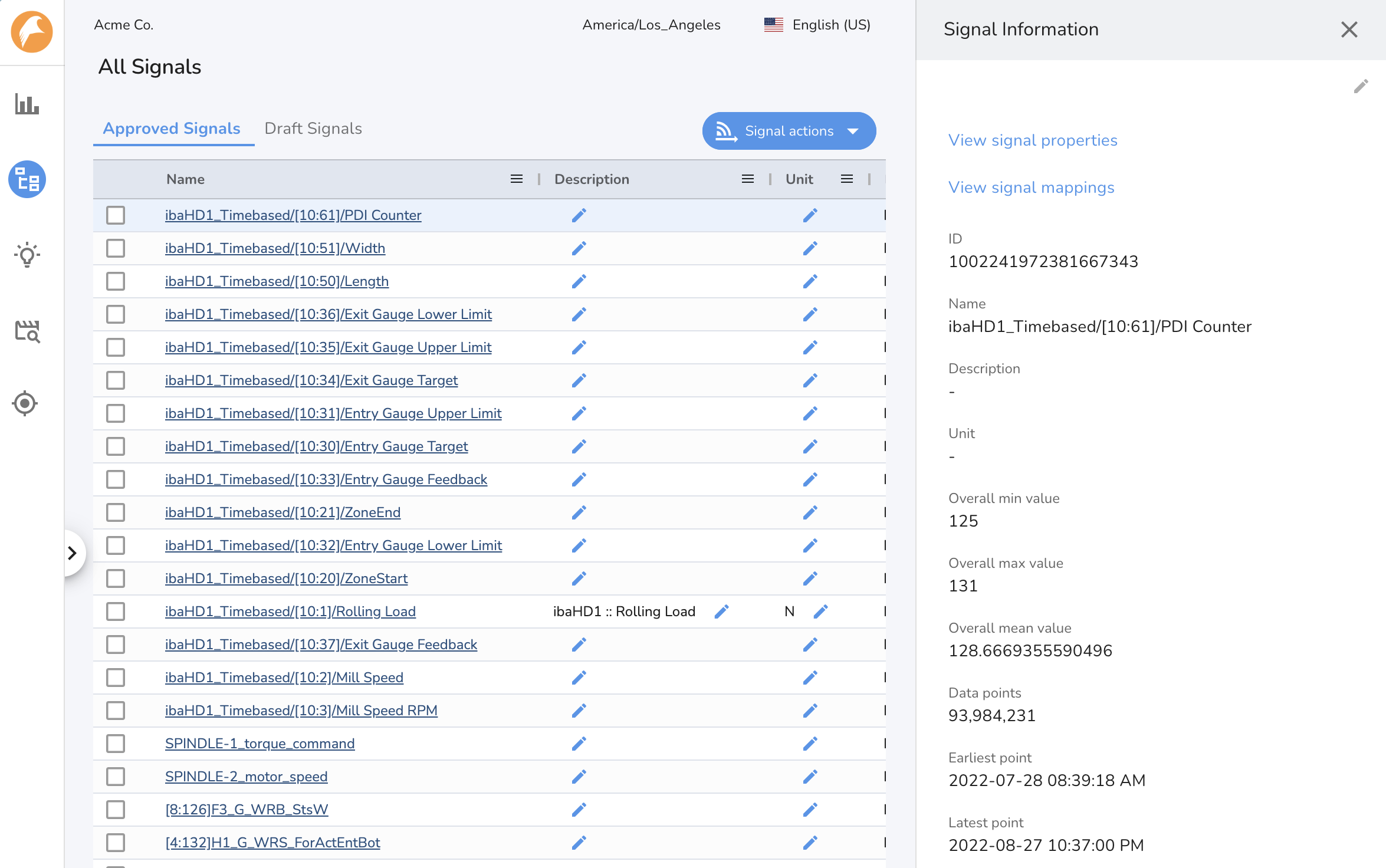
You can map the new signal name via Signal Mapping UI or by importing the metadata file in CSV format. To map an existing signal to a new name, open Signal Info panel and click View Signal Mappings section.
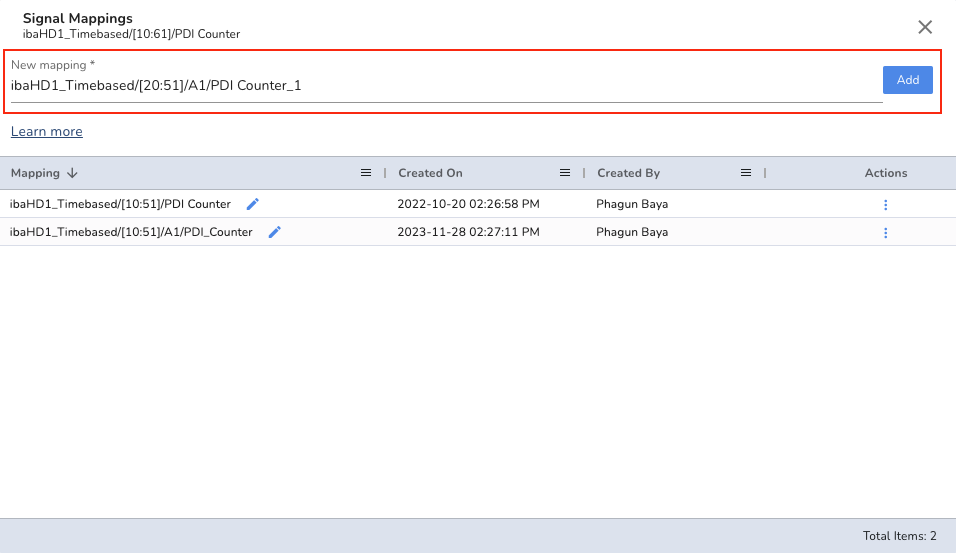
In the Signal Mapping section, type in the new signal name and click Add.
To bulk apply the signal name changes, you can import the signal name mappings via Import Signal Metadata or Mapping action under All Signals section. The mapping file must be CSV formatted with fixed header information as described below:
Exporting signal names
You can export the signal names by using the Export Signals action from the signal table within the Signal Manager. Make sure the CSV formatted mapping file is valid and has the special characters handled.
| Column Name | Use |
|---|---|
| signalName | Name of the approved signal in TSI. This is a required column. |
| signalMapping | New name of the signal in the external system. Note: If the connection settings have signal name prefix set, you must prefix the new signal name while setting the mapping. |
Template:

signalName,signalMapping
{{current_signal_name}},{{connection_signal_name_prefix}}{{new_signal_name}}

Example:

signalName,signalMapping
ibaHD1_Timebased/[10:61]/PDI_Counter,ibaHD1_Timebased/[10:51]/A1/PDI_Counter
ibaHD1_Timebased/[10:62]/RPM,ibaHD1_Timebased/[10:62]/A1/RPM
Each signal can have multiple mappings
You are allowed to add multiple mappings for each signal. The incoming data can have any of the mapping names or the existing signal name.